Your SWAP on Base
Your SWAP will be sent to the Base address linked to your DAG wallet. Here's how to access it.
Add SWAP using the official Base contract in step 4.
Hardware wallet? Use the official form.
Read the stepsCopy your DAG key
- Open Settings → Wallets and select your original DAG wallet.
- Choose Show Private Key and enter your password.
- Select Constellation Network, then Reveal private key → Copy to clipboard → Done.
Choose the Constellation key, not the EVM key.
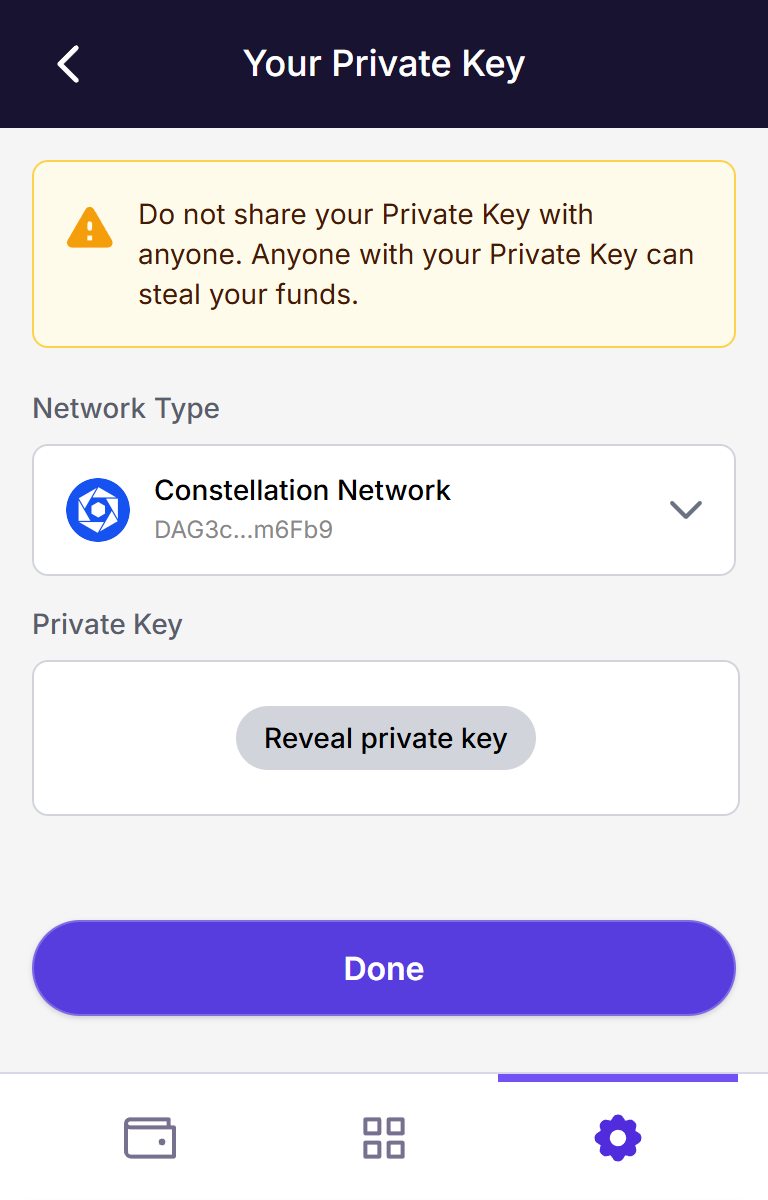 Demo wallet · Tap to enlarge
Import it as Ethereum
- Go to Wallets → + → Import wallet → Ethereum.
- Select Private key, paste your key and name the account.
- Click Import → Finish. Clear your clipboard.
Ethereum accounts work on Base too. Keep your original wallet and backup.
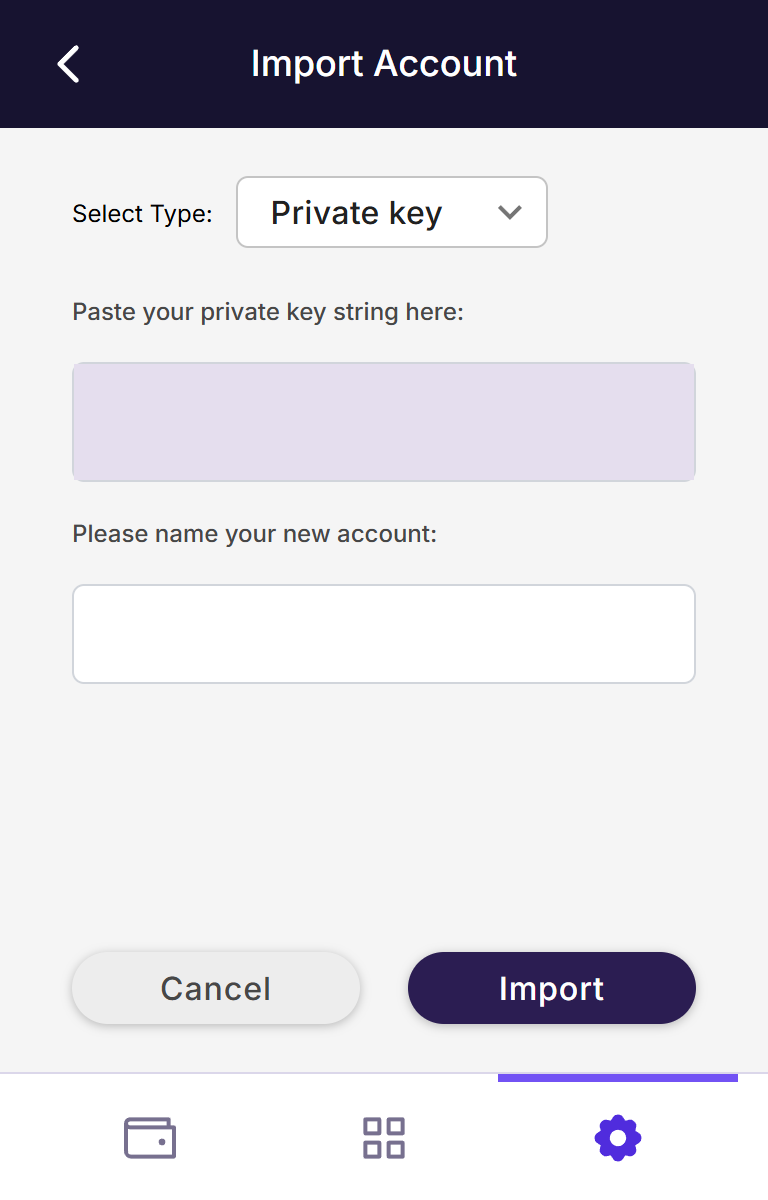 Demo wallet · Tap to enlarge
Find your Base address
- On the home screen, select your newly imported account.
- Open Base ETH → Receive to see your Base address.
Base ETH missing? Enable BASE_ETH in Manage Tokens.
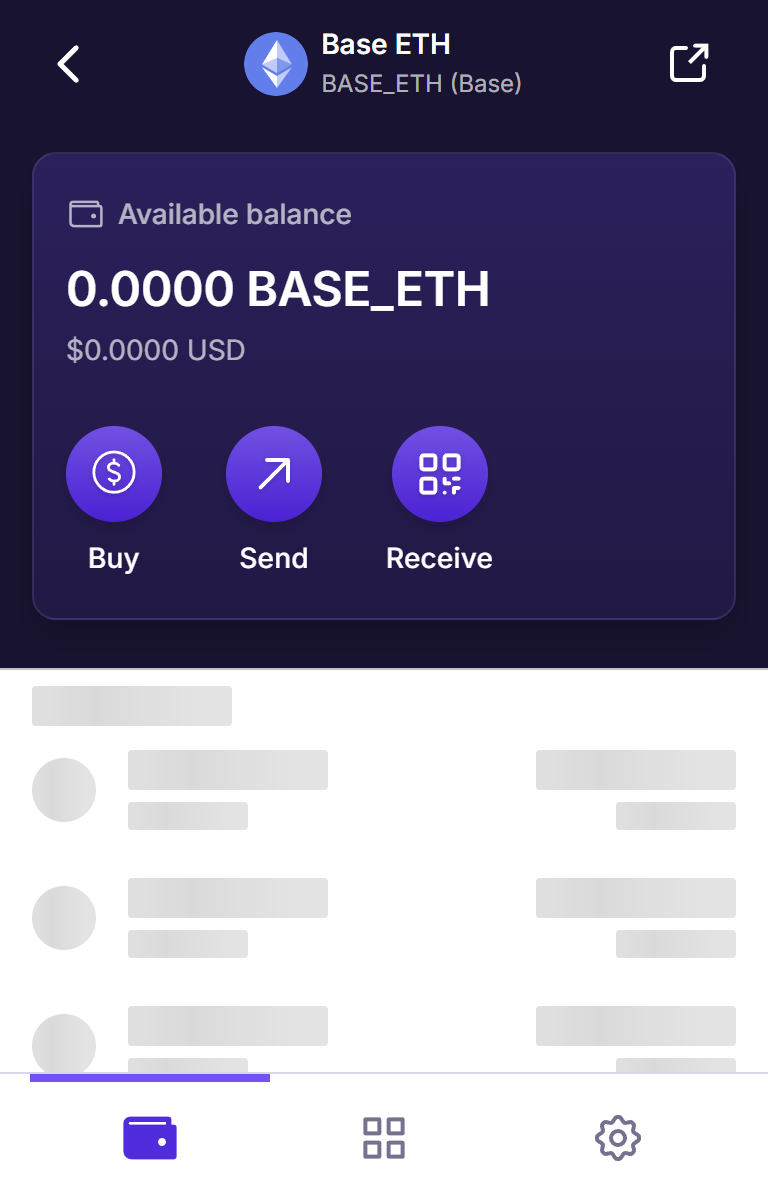 Demo wallet · Tap to enlarge
Add SWAP to your wallet
SWAP contract on Base
0x406d869602311972E789Af354148B63f8A835730- Copy the SWAP contract address above.
- Then open Manage Tokens → + → Base, enter that contract and choose Add Token.
There is nothing to claim or sign. Your balance will appear after distribution.
Using another wallet?
Any wallet that supports Base and Ethereum private-key imports can access the same account.
- Copy your original DAG account's private key.
- Inside your chosen wallet, select Import account → Private key and import it.
- Open that account on Base. Add SWAP using the contract address in step 4.
Use the individual DAG key, not a recovery-phrase import. Keep your original wallet backup and clear your clipboard afterwards.
Example: MetaMask's import guide